Errors and Resolutions of Failed QuickBooks Data Restoration
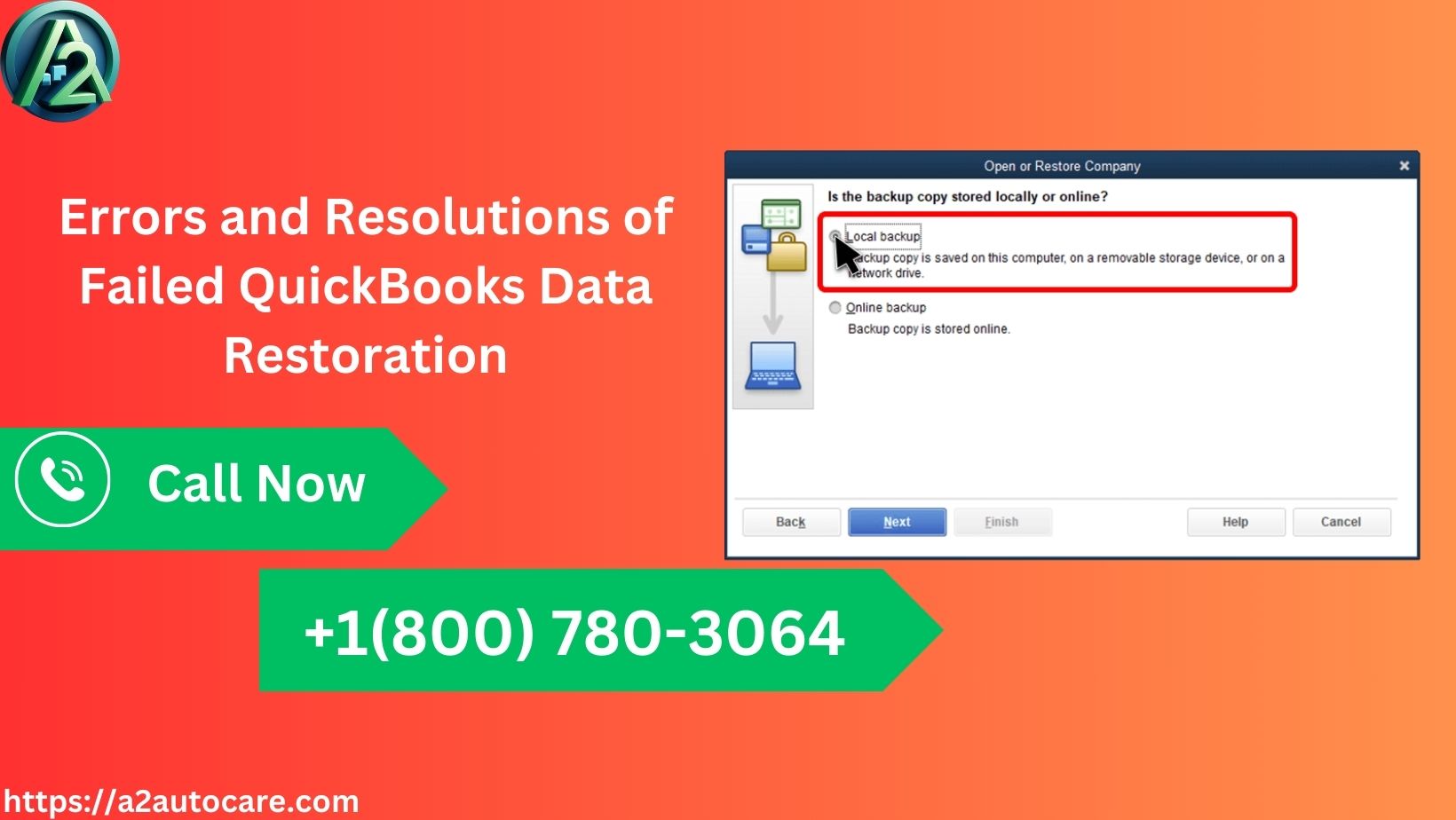
Are you constantly encountering an error in your QuickBooks Desktop related to the failed restoration of QuickBooks backup data? Follow the blog to explore all the exclusive details on why such an issue happens and how to efficiently resolve it.
Intuit Inc. developed the QuickBooks Desktop program decades ago, and it is still the best accounting software used across different countries. However, just like any other financial tool or software, QuickBooks Desktop has flaws and errors.
Sometimes, due to a few errors, an error arises when users try to open or restore a company file backup copy in QuickBooks Desktop. The error message flashes as, “Error: Restore failed.”
You must follow this blog post to understand why these issues occur and how to fix them instantly.
Why Are You Unable to Restore Backup Data in QB?
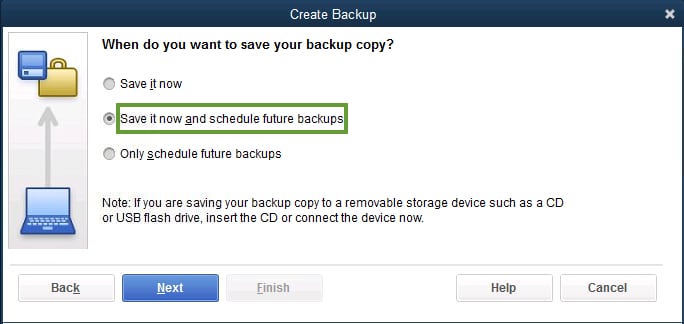
It is helpful to troubleshoot any error in QuickBooks when you understand the factors behind the mistake. There are numerous factors that trigger an error while you attempt to restore backup data in QuickBooks software:
You encounter a failed restoration error message primarily because the company file name contains special characters.
A corrupted QuickBooks company file (.QBW) can trigger an error in the software.
Inappropriate backup settings in the QuickBooks program are another reason for an issue.
If your backup file is stored on a network drive, then network connectivity issues may be responsible for unsuccessful restoration.
Not having enough user permissions can prevent your QuickBooks program from accessing and restoring the backup file.
Insufficient disk space on the system or server can lead to an error while restoring.
Sometimes, compatibility issues between QuickBooks and backup files are the reasons.
Quick Resolution to Fix the QuickBooks Restore Failed Error
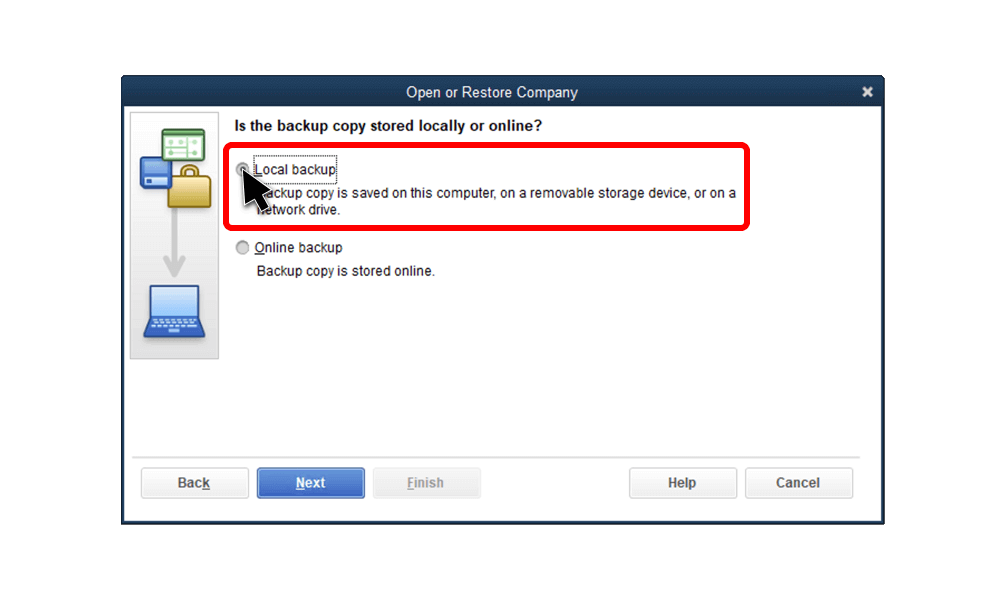
After identifying triggering factors behind issues while restoring QuickBooks backup data, let us explore various troubleshooting techniques for instant improvement.
Resolution: Fix the Company File Name Manually
To fix the QuickBooks restoration error, you must manually remove any special characters from your company file name in the software. For this, you can perform these steps chronologically:
First, go to the Start menu in Windows.
Now, navigate to the folder that contains all your company files. Typically, the QuickBooks installation folder is on the C drive.
Then, right-click on the company file. After that, select the Rename option from the appearing menu.
Now, carefully check the file's name and remove all the special characters from the file name.
Then, when the changes are complete, hit the Enter button on your keyboard.
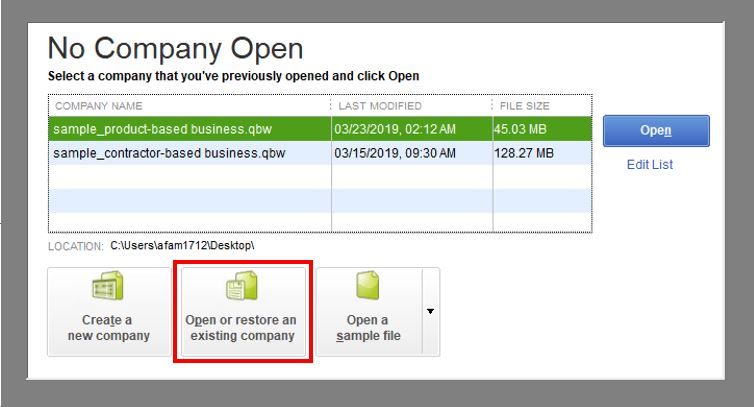
At this point, you can launch the QuickBooks Desktop software on your computer. Now, retry to restore the company file like before to ensure the error has been resolved.
If the QuickBooks restore failed error message persists, try to run the Verify and Rebuild Data tool to resolve the issue.
This blog on the QuickBooks restore failed error meticulously explains why an error occurs during the backup restoration in the software. It gives the best resolution tips for fixing the error.
If you continue to experience the same issue or have any follow-up queries, then dial +1(800) 780-3064 and connect with a QuickBooks expert for additional support.


